
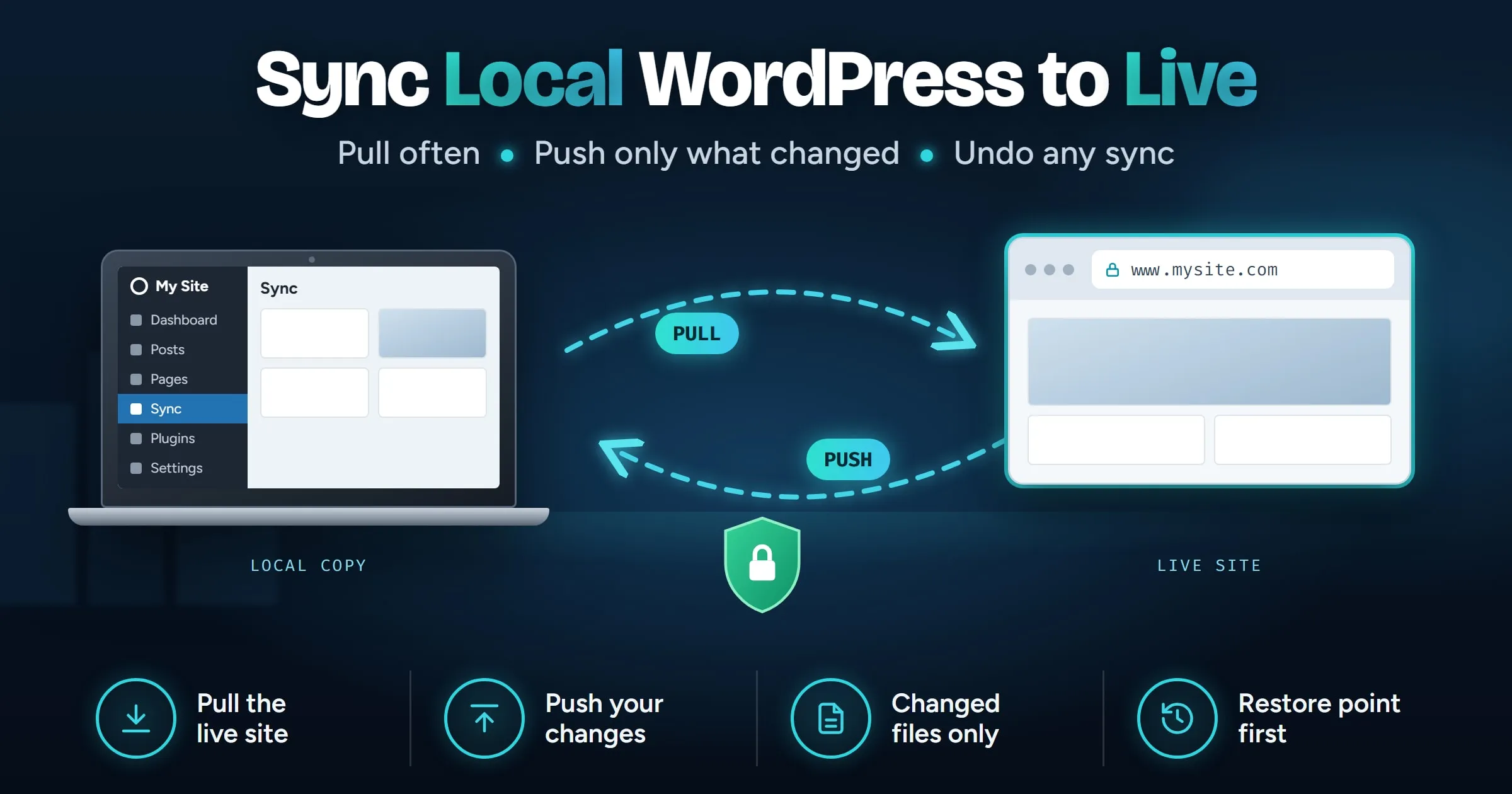
How do you sync a local WordPress site to live?
To sync a local WordPress site to live, first pull a fresh copy of the live site to your computer, make your changes locally, then push back only what you changed. Push theme and plugin files freely, but push the database with care, because the live database holds orders, comments and form entries that your local copy does not have. Take a backup of the live site before every push so you can undo it.
Last updated
In this guide
- Why work on a local copy at all?
- What is the difference between pulling and pushing?
- What should you sync, and what should you never overwrite?
- How do you pull a live WordPress site to your computer?
- How do you push local WordPress changes to a live site safely?
- How do you sync local and live with MoveSafe?
- Common sync problems and how to fix them
- Next steps
- Sources
To sync a local WordPress site to live, you pull a fresh copy of the live site to your computer, make your changes there, and push back only what changed. Files such as themes and plugins are safe to push. The database needs care, because the live database keeps collecting orders, comments and form entries while you work. This guide covers when to pull, what to push, how to do it by hand, and how to undo a push that goes wrong.
Why work on a local copy at all?
Editing a live site directly means every mistake is public. A typo in a theme file can take the whole site down, and a half-finished design change is visible to every visitor until you finish it. A local copy, running on your own computer with a tool such as LocalWP, lets you break things privately and only publish what works.
A staging site on your host gives the same safety with one difference: it runs on a real server, so it is closer to how the live site behaves. Everything in this guide applies to staging and live as well as local and live.
What is the difference between pulling and pushing?
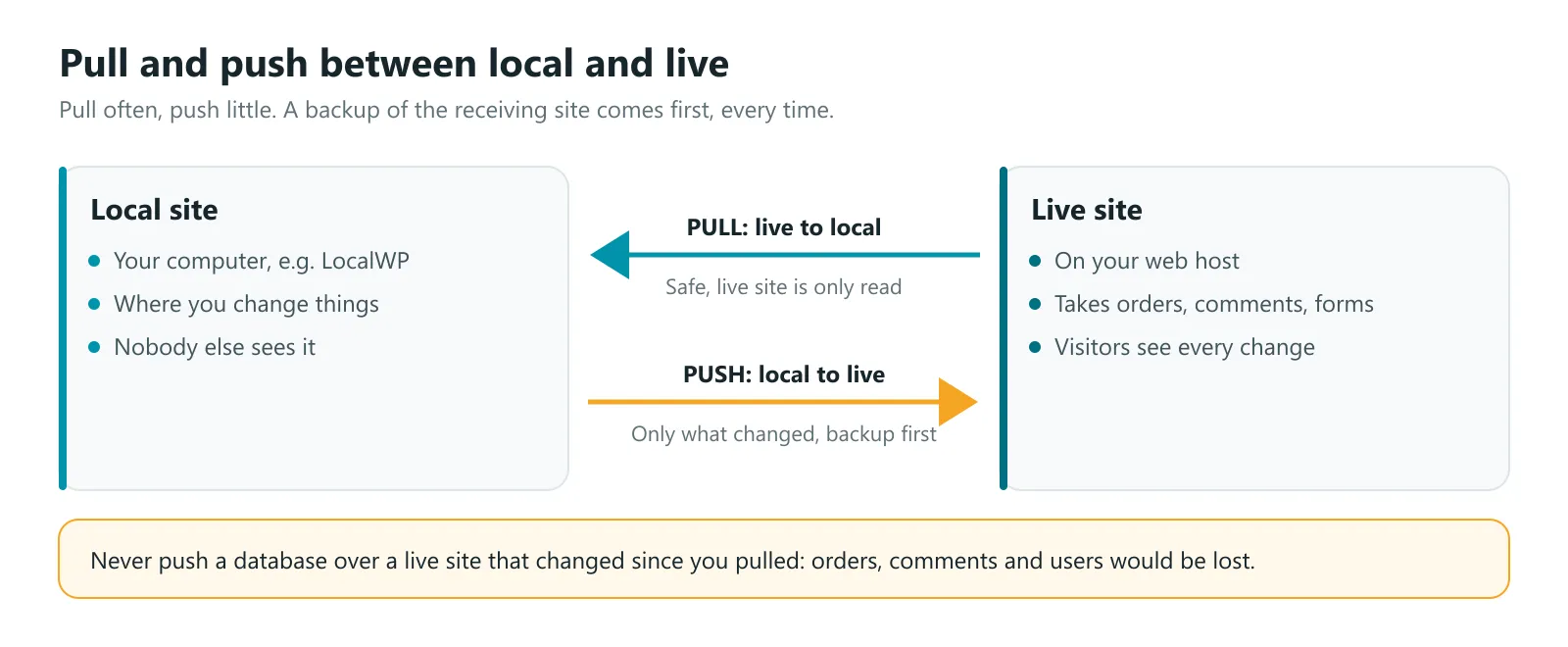
| Pull (live to local) | Push (local to live) | |
|---|---|---|
| What it does | Copies the live site to your computer | Sends your changes to the live site |
| Risk to visitors | None. The live site is only read | High. Visitors see the result straight away |
| How often | Before every piece of work | Only when a change is finished and tested |
| What to send | Usually the whole site | Only what you changed |
The rule that prevents most disasters: pull often, push little. Start every piece of work from a fresh pull, so your local copy matches what is live. Then push only the parts you actually changed.
What should you sync, and what should you never overwrite?
A WordPress site is files plus a database, and they behave very differently when you sync.
Files (themes, plugins, uploads) mostly change when you change them. A new theme template or an updated plugin can be pushed with little risk, because nobody else edits those files on the live site.
The database changes all the time on a live site, without you. Every order, comment, form entry, new user, and even some settings land in the database. If you push your local database over the live one, all of that is replaced with your older copy.
| Safe to push from local | Never overwrite on live without checking |
|---|---|
| Theme files and child theme changes | WooCommerce orders and customers |
| Plugin files you added or updated | Comments and form entries |
| New images you uploaded locally | Users and their passwords |
| Settings you changed, if nothing changed live | Anything a visitor or another editor created |
For a busy store or a site with several editors, the safest pattern is to make content changes directly on the live site and use local only for design and code. Push files, not the database.
How do you pull a live WordPress site to your computer?
- Back up the live site as a single archive of files and database, or export them separately.
- Create an empty local site in LocalWP or a similar tool.
- Copy the files. Replace the local wp-content folder with the live one.
- Import the database into the local site, through the tool’s database manager or with WP-CLI:
wp db import live.sql. - Rewrite the addresses. Run a search and replace that understands serialized data, such as WP-CLI:
wp search-replace 'https://www.example.com' 'https://example.local' --all-tables- Turn on “Discourage search engines” under Settings, then Reading, if the copy will ever be reachable from the internet, and save permalinks.
Never edit the SQL file with a plain text find and replace. WordPress stores some settings as serialized data, which records the length of each piece of text. Change the text without fixing the lengths and those settings quietly break.
How do you push local WordPress changes to a live site safely?
- Check nothing changed on live since your last pull. If posts, orders or settings changed, do not push the database.
- Back up the live site right before the push. This is your way back.
- Push files first. Upload only the theme or plugin folders you changed, with SFTP, Git or your deployment tool.
- Push database changes only if you must, and only the tables involved. For settings changes, it is often quicker and safer to repeat them by hand in the live wp-admin.
- Rewrite addresses from the local address back to the live one if any database content moved.
- Clear every cache: caching plugins, the host’s cache and any CDN.
- Test the live site: home page, a few posts, forms, logins and, on a store, a test checkout.
If anything looks wrong, restore the backup from step 2 straight away rather than fixing forward on a live site.
How do you sync local and live with MoveSafe?
MoveSafe, the WordPress backup and migration plugin we make, has a sync feature built for this job. You install it on both sites, such as your local copy and your live site, and connect them once. From then on, the site you are working on can pull from or push to the other.
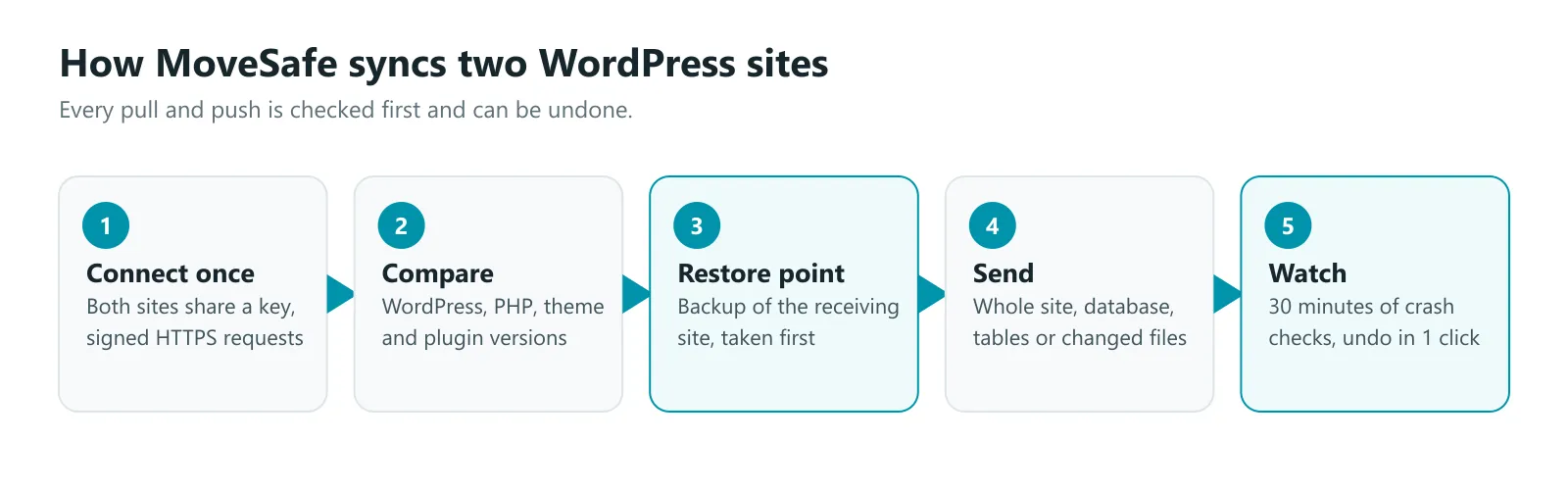
- Choose what to send. Pull or push the whole site, the database only, only some tables, or only the files that changed since the last sync.
- Versions are compared first. Before every pull or push, MoveSafe compares the WordPress, PHP, theme and plugin versions on both sites and warns you if either site was updated since the last sync.
- See what changed. A “changes since last sync” view lists the files that differ, so you know what a push will send.
- Every sync can be undone. A restore point is taken before every pull and push. If the site keeps crashing in the 30 minutes after a sync, it rolls itself back, and you can undo the sync yourself in one click.
- Signed HTTPS. The two sites share a key and every request between them is signed and sent over HTTPS. Administrator usernames are never sent to the other site.
- Built for real hosting. It works with page caches such as LiteSpeed Cache, falls back automatically when a host blocks the REST API, and works through firewalls. Large pieces are sent in chunks of up to 32 MB, with automatic retries if the connection drops.
Because your local site is the one asking, it does not need to be reachable from the internet. It contacts the live site, asks what changed, and pulls or pushes only that.
Common sync problems and how to fix them
| Problem | Likely cause | Fix |
|---|---|---|
| Local links go to the live site | Addresses were not rewritten after the pull | Run a serialization-safe search and replace |
| Orders or comments disappeared after a push | The local database replaced the live one | Restore the backup from before the push, then push files only |
| Live site shows old styles after a push | Page cache or CDN still serving the old files | Clear the plugin cache, the host cache and the CDN |
| White screen after a push | A plugin or theme needs a newer PHP than the live server has | Match PHP versions on both sites, or restore and update locally first |
| Staging copy appears in Google | Search engine visibility was left on | Turn on “Discourage search engines” on every non-live copy |
Next steps
Start every change with a fresh pull, keep your pushes small, and never push a database over a live site that has changed since you pulled it. If you are moving the whole site to new hosting rather than syncing changes, read our guide on how to migrate WordPress to a new host. And if a push does go wrong, how to restore WordPress from a backup safely walks you through getting back.
Sources
- wp search-replace, WP-CLI command reference
- wp db import, WP-CLI command reference
- Migrating WordPress, WordPress Advanced Administration Handbook