
How do you restore WordPress from a backup safely?
To restore WordPress from a backup, first take a fresh backup of the site as it is now, then check what the restore will replace and what newer content it would remove. Restore only the part that fixes the problem, such as one plugin folder or the database, and keep wp-config.php as it is. Afterwards, save permalinks, clear caches and test your key pages.
Last updated
In this guide
- Do you actually need to restore?
- What to check before you restore
- Should you do a full or partial restore?
- How do you restore WordPress manually?
- How do you restore from your host’s backups?
- How do you restore WordPress with MoveSafe?
- How do you undo a WordPress restore?
- How do you restore a WooCommerce store without losing orders?
- What should you check after a restore?
- What if the restore breaks the site?
- Next steps
- Sources
To restore WordPress from a backup safely, take a fresh backup of the site as it is now, check what the restore will replace and what it will remove, and restore only the part that fixes the problem. That order protects you twice: you lose no newer posts or orders by accident, and you can undo the restore if it makes things worse. This guide covers what to check, how to restore by hand or with a plugin, and what to do when a restore goes wrong.
Do you actually need to restore?
A restore is a big change, and sometimes a smaller fix is faster and safer. Before you reach for a backup:
- A plugin update broke the site? Rename that plugin’s folder in wp-content/plugins over SFTP or the file manager, for example from contact-form to contact-form-off. WordPress turns the plugin off, and the site usually comes back.
- You see “There has been a critical error on this website”? WordPress may have emailed the site’s admin address a recovery mode link. Recovery mode lets you log in and turn off the plugin or theme that caused the error.
- One post or page was changed by mistake? Open it in the editor and use Revisions to go back to an earlier version.
- Something was deleted in the last 30 days? Check the Trash under Posts, Pages or Media. WordPress keeps trashed items for 30 days by default.
Restore from a backup when those are not enough: files are missing or damaged, the database is broken, the site was hacked, or a change cannot be undone any other way.
What to check before you restore
The most common restore mistake is not a technical one. It is restoring a backup without knowing what it will replace. Check these first:
- Take a backup of the site as it is now. Even a broken site has content you may want later, and this copy is your way back if the restore makes things worse.
- Check the date of the backup. Everything created after that date, such as posts, comments, sign-ups, form entries and orders, will be gone after a full database restore.
- Check what has changed since. Files you edited after the backup was made will be overwritten with older versions.
- Compare versions. If the backup has older plugins or themes, they will come back too. Check that they support the PHP version your server runs today.
- Make sure you can still log in afterwards. The restored database brings back the users and passwords from the backup date. If your admin account was created or changed later, know which login will work.
- Decide what to restore. Often you do not need the whole site.
Should you do a full or partial restore?
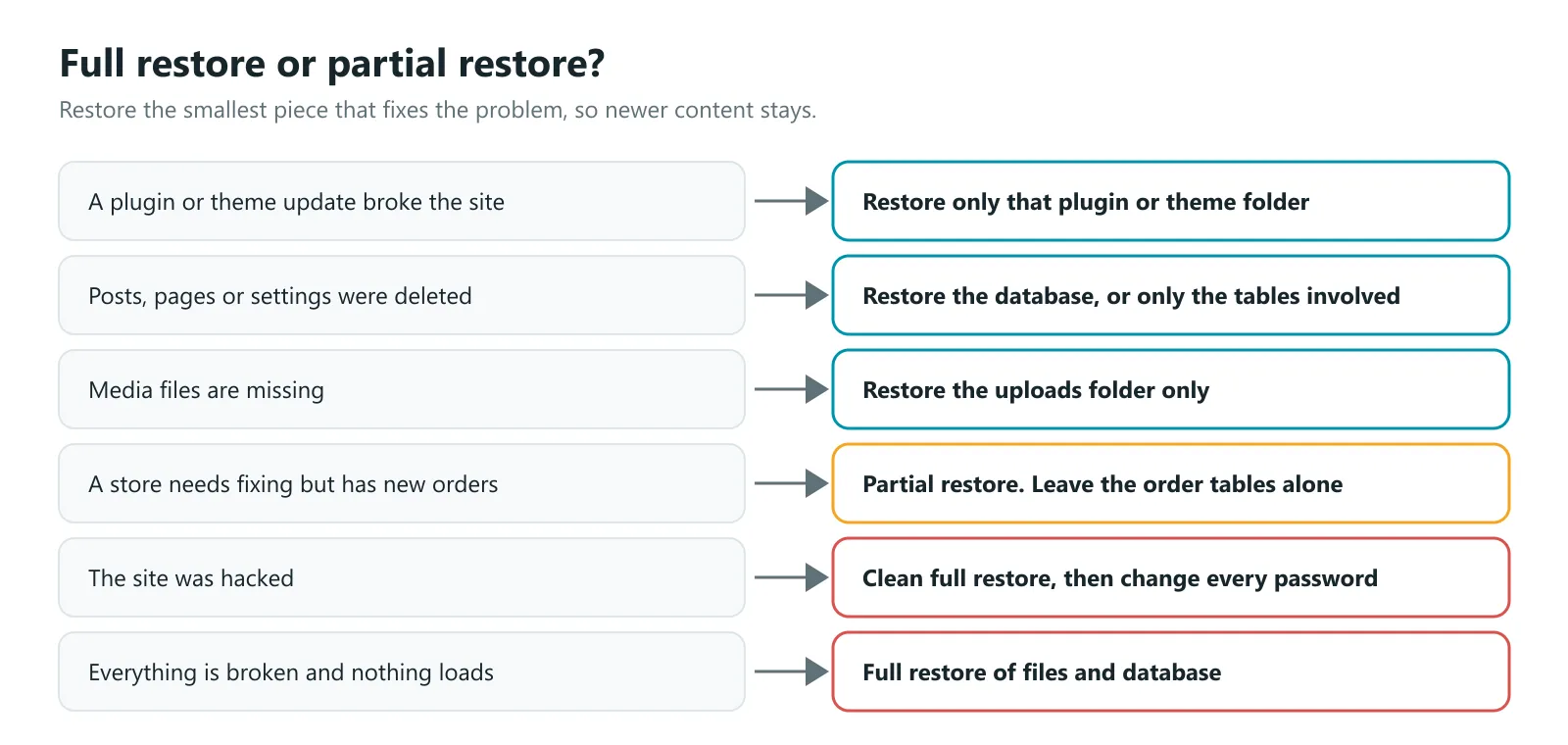
Restore the smallest piece that fixes the problem. The less you replace, the less newer content you lose.
| What happened | What to restore |
|---|---|
| A plugin or theme update broke the site | Only that plugin or theme folder |
| Posts, pages or settings were deleted | The database, or only the tables involved |
| Media files are missing | Only wp-content/uploads |
| A store needs fixing but has taken new orders | A partial restore that leaves the order tables alone |
| The site was hacked | A full restore from a clean backup, then new passwords |
| Nothing loads at all | A full restore of files and database |
Restoring only some database tables needs care. WordPress keeps related data in several tables, for example posts in one and their custom fields in another, so restore related tables together.
How do you restore WordPress manually?
You can restore WordPress by hand when wp-admin will not load or you have no plugin installed. You need SFTP or file manager access and phpMyAdmin, or SSH with WP-CLI.
To restore the files:
- Unzip your backup on your computer.
- Connect to the server with SFTP or open the host’s file manager.
- Upload the folders you want to restore into wp-content, replacing the existing ones. For a full restore, replace the whole of wp-content.
- Leave wp-config.php alone unless it is missing or damaged. It holds the live database login, which may differ from the backup’s copy.
To restore the database:
- Open phpMyAdmin and select your WordPress database (the name is next to DB_NAME in wp-config.php).
- Click Import, choose the .sql file from your backup and run it. Most backup tools write files that replace each table. If the import stops because a table already exists, drop the existing tables first (your fresh backup from the checklist above keeps them safe), then import again.
With SSH access, WP-CLI does the database part in one command:
wp db import backup.sqlIf the backup came from a different address, such as a staging site or the old http version of the site, run a serialization-safe search and replace afterwards, for example wp search-replace 'https://staging.example.com' 'https://www.example.com' --all-tables. Then finish with the checks in What should you check after a restore?
How do you restore from your host’s backups?
Most hosts have a Backups section in the control panel with a restore button. It is usually the fastest option, but check the details before you click:
- Can you choose what to restore? Some hosts let you restore only files or only the database. Others replace the whole hosting account, including every other site and email folder on it.
- Does it take a copy first? If not, take your own backup before restoring, so you can undo it.
How do you restore WordPress with MoveSafe?
MoveSafe, the WordPress backup and migration plugin we make, was built around the checks above. Every restore follows the same six steps.
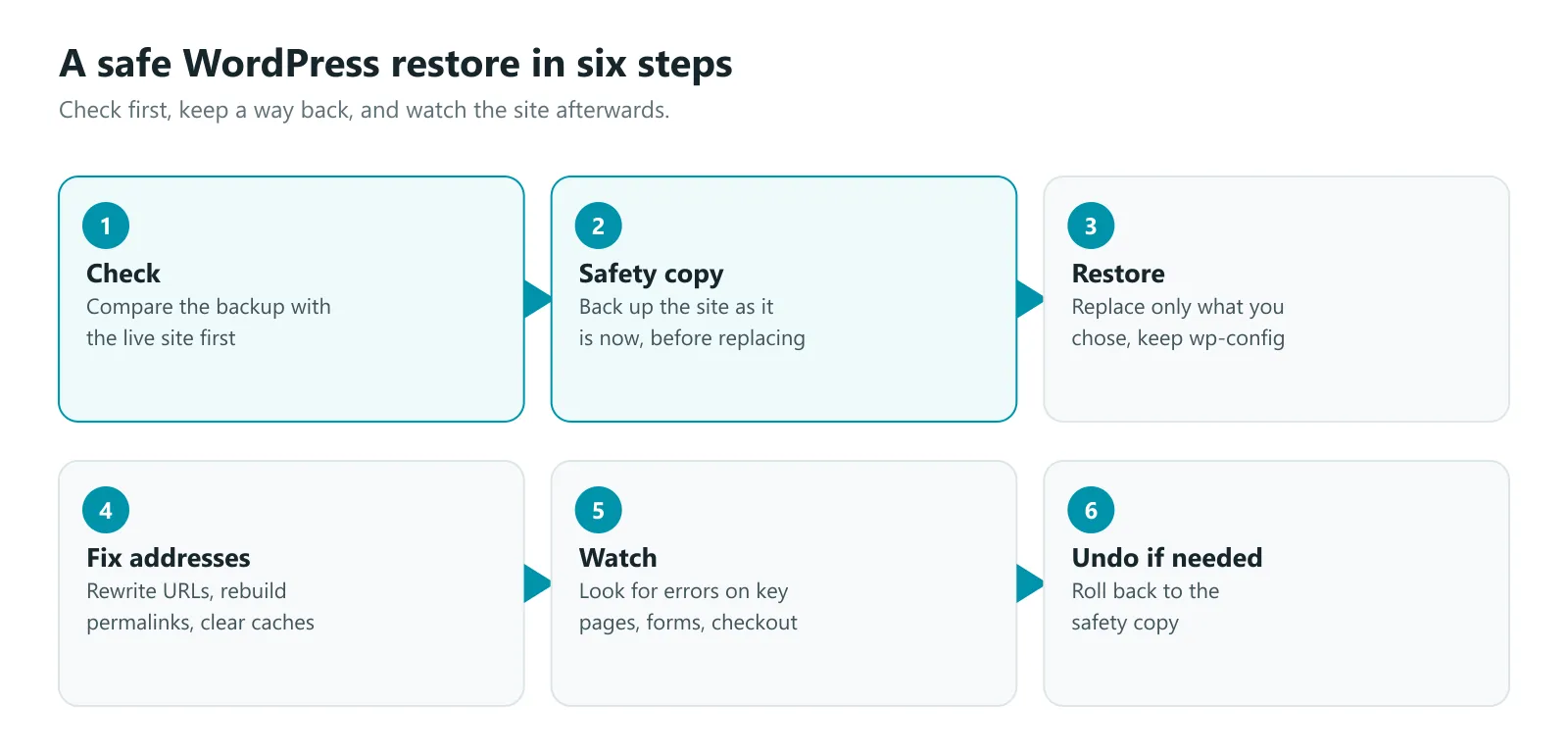
- Check. Choose a backup and MoveSafe compares it with the live site before replacing anything. The pre-restore check shows which files will be overwritten, added or left unchanged, which files you edited after the backup was made, plugin and theme version changes, PHP and WordPress compatibility, and content created since the backup that would be lost, such as posts, comments and orders. It also tells you which administrator login will work afterwards, without listing usernames.
- Safety copy. MoveSafe takes a restore point of the current site automatically.
- Restore. Restore the whole site, chosen files and folders, the whole database or only some tables. MoveSafe warns you if you restore plugin or theme files without the tables they need. It never touches WordPress core files, wp-config.php, .htaccess or cache drop-ins.
- Fix addresses. URLs are rewritten if the backup came from another address, permalinks are rebuilt and caches cleared.
- Watch. For 30 minutes after the restore, MoveSafe watches for crashes. If the site keeps crashing, visitors see a short “being restored” page instead of an error, and the site rolls itself back.
- Undo if needed. Roll back to the restore point in one click.
If your host kills a step because of a time limit or memory limit, MoveSafe retries it automatically, up to three times. A restore that cannot continue is rolled back with a clear error, rather than leaving the site half restored. Progress shows the current step, percentage done, speed and time left.
MoveSafe can also restore .wpress backups made by All-in-One WP Migration, and the upload is not limited by your host’s PHP upload size.
How do you undo a WordPress restore?
You can only undo a restore if a copy of the site from just before it exists. That is why the first check above is to take a fresh backup.
- By hand: restore that fresh backup, following the manual steps above.
- With MoveSafe: every restore, and every pull or push between synced sites, starts with a restore point. Open Undo a restore and roll back in one click.
- When wp-admin will not load: MoveSafe emails a rescue link that undoes the last restore without logging in.
How do you restore a WooCommerce store without losing orders?
A store’s database changes every time someone buys. A full database restore to yesterday’s backup removes every order, customer account and stock change since then, and payment providers will still have records of those payments.
To fix a store safely:
- Restore files only when the problem is a plugin or theme. Order data lives in the database, so file restores do not touch it.
- If you must restore the database, restore only the tables involved, and leave the order tables alone. Depending on your WooCommerce version and settings, orders are stored in the posts tables or in WooCommerce’s own order tables, so check which your store uses first.
- Put the store in maintenance mode during the restore so no orders arrive halfway through.
- Compare order numbers before and after, and check the latest orders still open.
MoveSafe’s pre-restore check lists orders created since the backup, so you can see the cost before you restore, and its partial restore lets you choose which tables to bring back.
What should you check after a restore?
- Save permalinks under Settings, then Permalinks, to rebuild the rewrite rules.
- Clear every cache: caching plugins, the host’s cache and any CDN.
- Log in and check your user and role are correct.
- Visit your key pages, including the home page, a few posts, the menu and the contact page.
- Test forms, logins and, on a store, a test checkout.
- Check plugins and themes for updates. A restore can bring back old versions with known security fixes missing.
- Look at Settings, then Reading and confirm “Discourage search engines” is off on a live site.
What if the restore breaks the site?
If you see a white screen, “There has been a critical error” or “Error establishing a database connection” after a restore:
- White screen or critical error: the restored plugins or theme may not support your server’s PHP version. Check the PHP error log in your hosting panel, rename the plugin folder named there, or switch PHP to a version the restored code supports.
- Database connection error: wp-config.php was probably replaced with the backup’s copy, which points at a database or password that no longer exists. Put back the correct database details.
- Too many redirects: the backup came from a different address, such as http instead of https. Run a serialization-safe search and replace for the old address.
If none of that works, roll back to the copy you took before the restore and start again with a smaller, partial restore. Our guide on how to back up WordPress explains how to make sure your next backup is complete, and our guide to migrating WordPress to a new host covers restoring onto a different server.
Next steps
Before you restore anything, take a fresh backup of the site as it is now, then restore the smallest piece that fixes the problem. If the site is down and you would like help, book a free call and we will look at it with you. To stop the next problem from becoming an emergency, our website support and care plans include daily off-site backups, updates and monitoring, with a real person to call when something breaks.
Sources
- Backups, WordPress Advanced Administration Handbook
- wp db import, WP-CLI command reference
- Fatal error recovery mode in WordPress 5.2, Make WordPress Core