
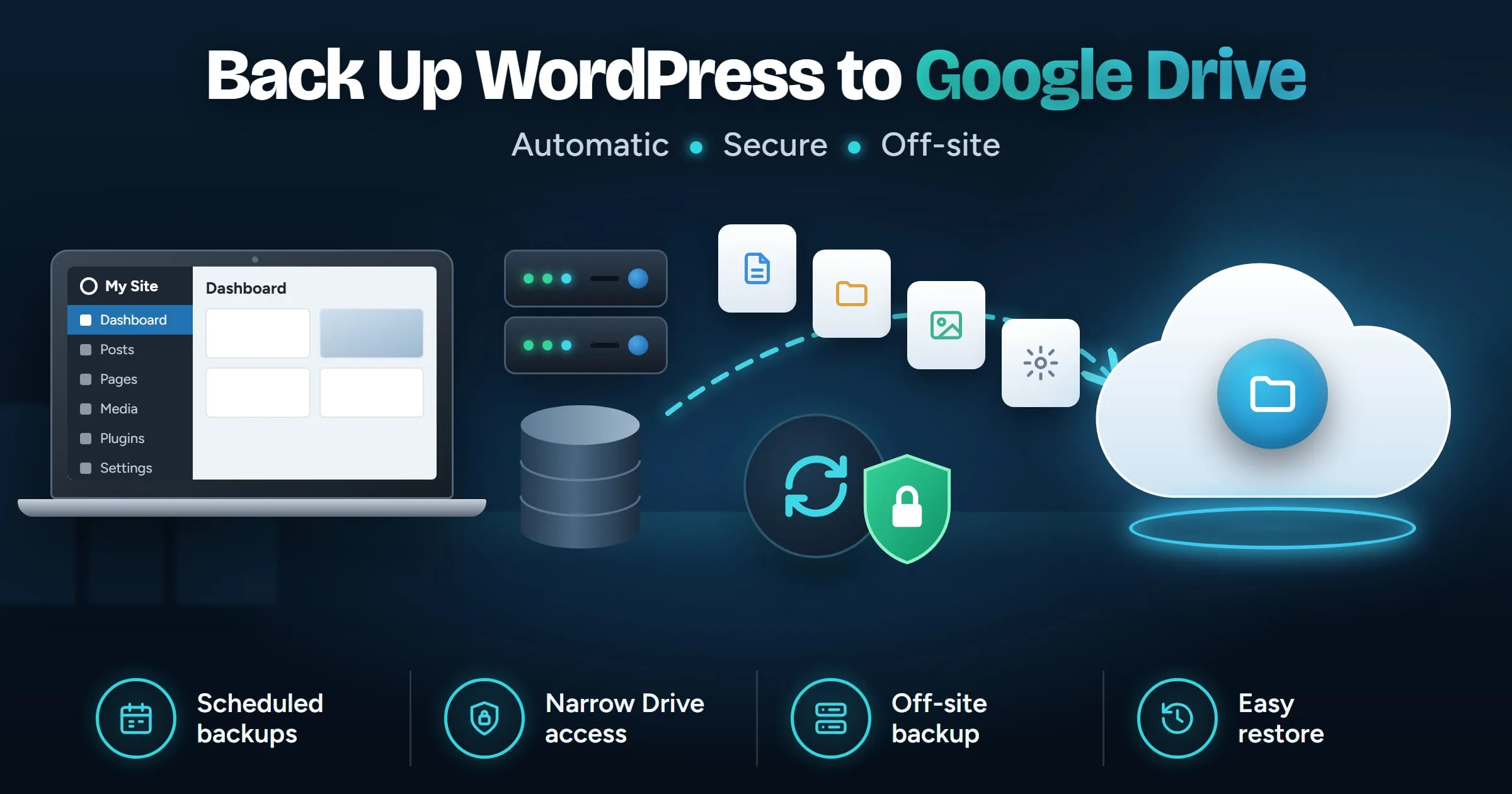
How do you back up WordPress to Google Drive?
To back up WordPress to Google Drive automatically, use a backup plugin that connects to Drive, choose a schedule, and set backups to upload to Drive after each run. Check that the plugin asks for the narrow drive.file permission, so it can only see the files it creates. Keep the newest few backups and delete older ones automatically so your Drive does not fill up.
Last updated
In this guide
- Why back up WordPress to Google Drive?
- What Drive access should a backup plugin ask for?
- How do you back up WordPress to Google Drive by hand?
- How do you back up WordPress to Google Drive automatically?
- How much Google Drive space do you need?
- How do you restore a WordPress backup from Google Drive?
- Common Google Drive backup problems
- Next steps
- Sources
To back up WordPress to Google Drive automatically, connect a backup plugin to your Google account, set a schedule, and have each backup upload to Drive when it finishes. Before you connect, check what the plugin asks to see in your Drive: the safe choice is the narrow drive.file permission. Then set the plugin to keep only the newest few backups, so your Drive never fills up.
Why back up WordPress to Google Drive?
Most backup tools save to a folder on your web server by default. That protects you from a bad update or a deleted page, but not from the server itself failing, being hacked or the hosting account being closed. A backup stored on the same server goes down with it.
Google Drive gives you a copy somewhere else, which is the “off-site” part of the 3-2-1 backup rule. It is also an account most people already have, with 15 GB of free storage included in every Google Account, shared between Drive, Gmail and Google Photos.
What Drive access should a backup plugin ask for?
When you connect a plugin to Google Drive, Google shows a consent screen listing what the plugin wants to do. This matters more than most people realize.
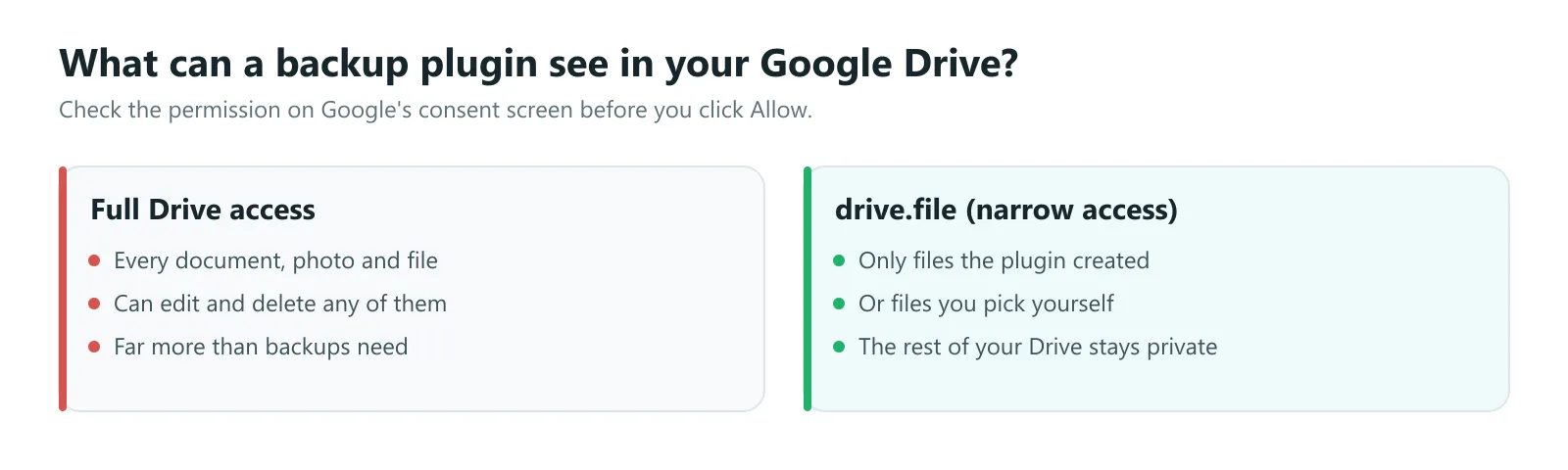
| Permission | What the plugin can see | Use it? |
|---|---|---|
| Full Drive access | Every file in your Drive: documents, photos, everything | Avoid if you can |
| drive.file | Only files the plugin created, or files you pick with Google’s file picker | Yes |
Google describes drive.file as access to files “that you open with an app or that the user shares with an app”. A backup plugin does not need more than that. If a plugin asks to see, edit and delete all your Google Drive files, think twice.
How do you back up WordPress to Google Drive by hand?
This works with any site, but it is not automatic.
- Make a backup of files and database. Our guide on how to back up WordPress covers the manual and plugin methods.
- Download it to your computer.
- Upload it to a Drive folder for that site, named with the date.
- Delete old copies when you no longer need them.
Developers with SSH access can automate this with a server cron job and a tool such as rclone, which supports Google Drive. For most site owners, a plugin is simpler.
How do you back up WordPress to Google Drive automatically?
With MoveSafe, the WordPress backup plugin we make:
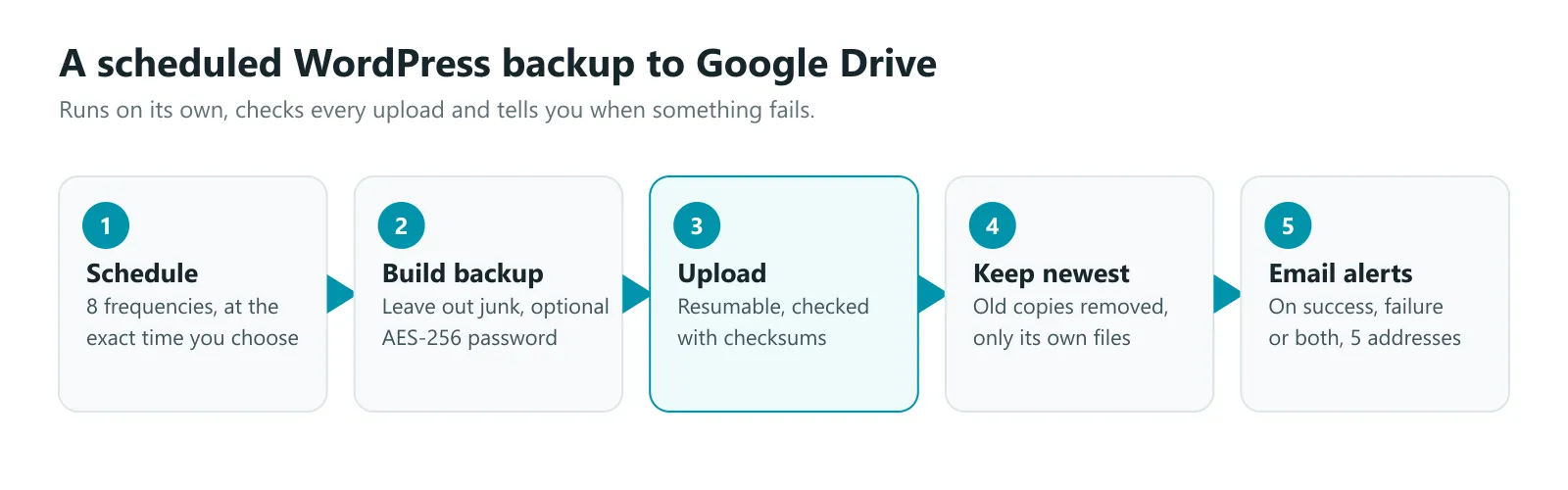
- Connect Google Drive. One click sends you to Google to approve access. No Google Cloud setup is needed. MoveSafe uses the drive.file permission, so it cannot see the rest of your Drive.
- Pick the folder. Each site gets its own folder automatically, or you can choose any folder with Google’s file picker.
- Choose where backups go. Keep them on the server and Drive, or on Drive only. With Drive only, the copy on the server is removed only after the upload is verified, and kept if the upload fails.
- Set a schedule. Choose from 8 frequencies, from hourly to monthly, at the exact time you want, such as 3 a.m. when traffic is lowest.
- Keep the newest few. Set how many backups to keep. Old ones are deleted automatically, and clean-up only ever deletes backups MoveSafe uploaded itself.
- Turn on email alerts. Get an email if a backup or upload fails, sent to up to 5 addresses.
Uploads are resumable and checked with checksums, so a dropped connection does not leave you with a broken copy. If you want an extra layer, encrypt the backup with a password (AES-256) before it leaves the server.
Several sites on one Google account? Each site lists and restores only its own backups. Using another site’s backup means picking it by hand and signing in with the connected Google account first, so one site cannot quietly restore another site’s data.
How much Google Drive space do you need?
Work it out from the size of one backup times the number you keep.
| Site | Backup size | Backups kept | Space needed |
|---|---|---|---|
| Small brochure site | 300 MB | 7 | about 2 GB |
| Blog with a big media library | 3 GB | 4 | about 12 GB |
| Online store | 2 GB | 14 | about 28 GB |
These are worked examples, not averages. Check your own backup size after the first run. If it is larger than expected, leave out the junk: cache folders, other plugins’ old backup archives, logs and post revisions. MoveSafe has a “leave out junk” switch that does this for you.
If your backups will not fit in 15 GB alongside your email and photos, either keep fewer copies, back up the database more often than the whole site, or use a Google account with more storage.
How do you restore a WordPress backup from Google Drive?
- Bring the backup back to the server. In MoveSafe, copy it back from Drive on the Backups screen. By hand, download it from Drive and upload it to the server.
- Take a fresh backup of the site as it is now, so you can undo the restore.
- Restore only what you need, such as one plugin folder or the database.
Our guide on how to restore WordPress from a backup safely covers what to check first and how to undo a restore.
Common Google Drive backup problems
| Problem | Likely cause | Fix |
|---|---|---|
| Upload fails on large sites | The host stops long-running tasks | Use a plugin with resumable uploads, or leave out junk to shrink the backup |
| Drive storage full | Too many old backups kept | Lower the number kept, or back up the database more often than files |
| Backups stopped without warning | Scheduled tasks only run when someone visits the site | Turn on email alerts for failures, and check the schedule ran |
| Uploads stopped after a Google account change | The plugin’s access was removed in your Google account settings | Reconnect Google Drive in the plugin’s settings |
Next steps
Connect Drive, schedule your first backup, and check the next morning that it arrived. Then restore it once on a test copy, so you know it works before you need it. If you would rather have backups handled for you, our website support and care plans include daily off-site backups.
Sources
- Choose Google Drive API scopes, Google for Developers
- Google storage, Google Drive Help
- Backups, WordPress Advanced Administration Handbook