
How do you move WordPress to a new domain?
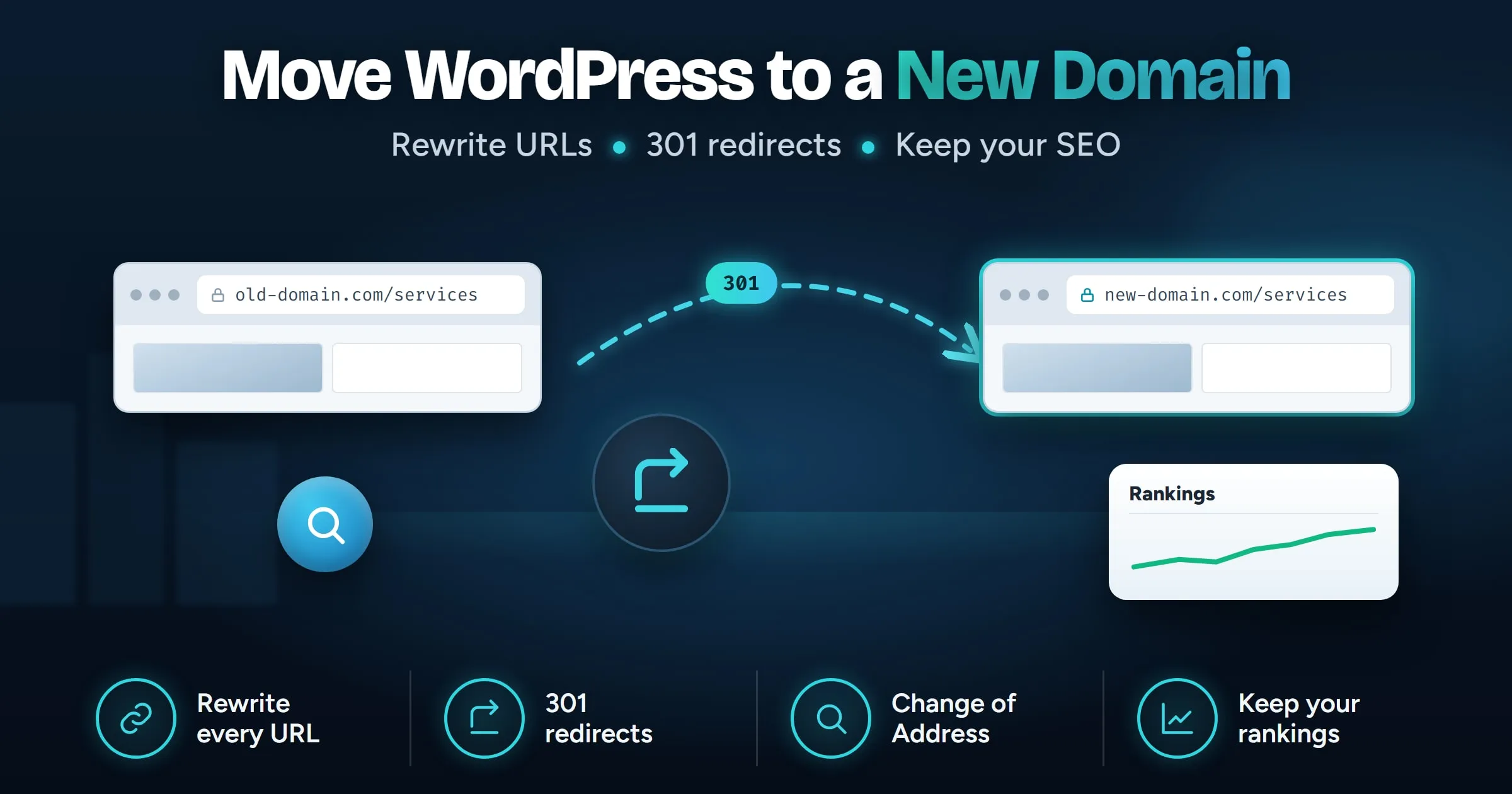
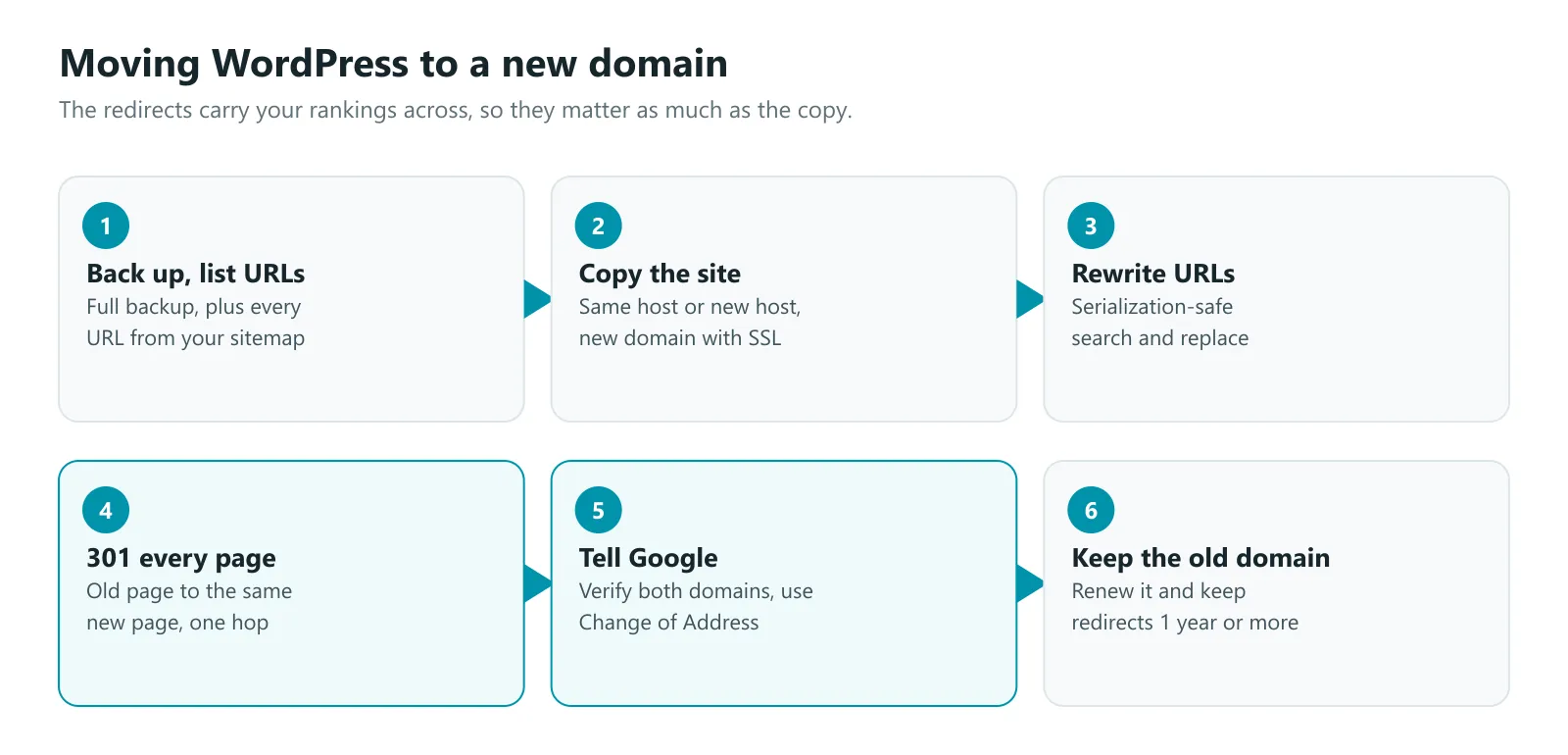
To move WordPress to a new domain, copy the site to the new address, rewrite every URL in the database with a tool that handles serialized data, and add page-by-page 301 redirects from the old domain to the new one. Then verify both domains in Google Search Console and use the Change of Address tool. Keep the old domain and its redirects for at least a year.
Last updated
In this guide
- What changes when a WordPress site moves to a new domain?
- Before you start
- Step 1: Copy the site to the new domain
- Step 2: Rewrite every URL in the database
- Step 3: Redirect every old URL to its new URL
- Step 4: Tell Google about the move
- Step 5: Update everything outside WordPress
- How long should you keep the old domain?
- How do you move WordPress to a new domain with MoveSafe?
- What usually goes wrong after a domain change?
- Next steps
- Sources
To move WordPress to a new domain without losing your search rankings, copy the site to the new address, rewrite every URL in the database, and redirect every old page to the matching new page with a 301 redirect. Then tell Google about the move with the Change of Address tool in Search Console. The redirects are what carry your rankings across, so they matter as much as the copy itself.
What changes when a WordPress site moves to a new domain?
A new domain is a migration with one extra job: every address changes. WordPress stores the full address of the site in the database, in two settings and in thousands of places inside your content: links between posts, image addresses, menus, widgets and page builder layouts. Search engines, other websites and your customers also know the old addresses.
So a domain move has three parts:
- Move the site so it runs at the new address.
- Fix every stored address inside WordPress.
- Point the old addresses at the new ones, for visitors and for Google.
Before you start
- Take a full backup of files and database. See our guide on how to back up WordPress.
- Make a list of your current URLs. Export them from your XML sitemap or from Search Console. You will use this list to test redirects afterwards.
- Verify the old domain in Google Search Console, if it is not already.
- Set up the new domain: DNS pointing at your host, SSL certificate working, and email set up if you use it.
- Pick a quiet time. Search traffic dips a little during any move, so avoid your busiest season.
Step 1: Copy the site to the new domain
If you are staying with the same host, add the new domain to your hosting account and either point it at the existing site folder or copy the site into a new folder. If you are changing host at the same time, follow the steps in how to migrate WordPress to a new host first, then come back here for the address changes.
Step 2: Rewrite every URL in the database
Do not edit the SQL file with a text editor or run a SQL REPLACE query. WordPress and many plugins store some settings as serialized data, which records the length of each piece of text. Change the domain without fixing those lengths and widgets disappear, theme options reset and page builder layouts go blank.
With WP-CLI, do a dry run first:
wp search-replace 'https://old-domain.com' 'https://new-domain.com' --all-tables --dry-runCheck the number of replacements looks sensible, then run it again without --dry-run. Repeat for any other form of the old address you used, such as the www version or http.
Afterwards, check Settings, then General: the WordPress Address and Site Address should both show the new domain. Save permalinks under Settings, then Permalinks to rebuild the rewrite rules.
Step 3: Redirect every old URL to its new URL
This is the step that protects your rankings. Every old address should send visitors and search engines to the same page on the new domain with a 301 (permanent) redirect. Google recommends server-side permanent redirects such as 301 or 308 for site moves.
On an Apache server, keep the old domain pointed at the old hosting and put this in its .htaccess file:
RewriteEngine On
RewriteCond %{HTTP_HOST} ^(www\.)?old-domain\.com$ [NC]
RewriteRule ^(.*)$ https://new-domain.com/$1 [R=301,L]
This keeps the path, so old-domain.com/services goes to new-domain.com/services. Many hosts and DNS providers such as Cloudflare also offer redirect rules that do the same thing without touching .htaccess.
Do not redirect everything to the home page. Google treats that as a lost page, and visitors who clicked a link to a specific post land somewhere they did not expect.
Test with your URL list from earlier: open a sample of old URLs and check each lands on the right new page in one hop.
Step 4: Tell Google about the move
- Verify the new domain in Google Search Console.
- Open the old domain’s property and use the Change of Address tool under Settings. It checks that your redirects work and asks Google to move the old domain’s signals to the new one.
- Submit the new XML sitemap in the new property.
- Watch both properties for a few weeks. The old domain’s indexed pages should fall as the new domain’s rise.
Step 5: Update everything outside WordPress
- Google Business Profile and other directory listings.
- Social media profiles, email signatures and printed materials.
- Analytics and tag settings that name the domain.
- Payment, booking and form tools that send customers back to your site, such as checkout return URLs.
- Links from other websites: ask the most important ones to update their links. Redirects cover the rest.
How long should you keep the old domain?
Keep the old domain registered and its redirects running for at least a year, which is Google’s general guidance for site moves. In practice, keep it as long as you can afford to. Old links in other sites, emails, PDFs and bookmarks keep sending visitors for years, and if the old domain expires, someone else can buy it and take that traffic.
How do you move WordPress to a new domain with MoveSafe?
MoveSafe, the WordPress backup and migration plugin we make, handles the WordPress side of a domain change:
- Every address in the database is rewritten, including serialized data, and permalinks and rewrite rules are rebuilt.
- SEO and multilingual plugins are recognized. Yoast, Rank Math, AIOSEO, SEOPress, WPML, Polylang, TranslatePress and Weglot are detected. Yoast’s index is updated, cached sitemaps and page caches are cleared, and language domains are moved.
- Search visibility is kept per site. The receiving site keeps its own “Discourage search engines” setting, so a staging copy will not suddenly become indexable and a live site will not be hidden.
- Each move is logged, including any old addresses left over, so you can see what still points at the old domain.
- Every restore can be undone. A restore point is taken first.
You still add the 301 redirects on the old domain and tell Google about the move yourself, because those happen outside WordPress.
What usually goes wrong after a domain change?
| Symptom | Likely cause | Fix |
|---|---|---|
| Images still load from the old domain | URLs not rewritten in the database | Run the serialization-safe search and replace again |
| Too many redirects | The new domain also redirects back, or http and https disagree | Check redirect rules on both domains and the WordPress Address setting |
| Traffic dropped sharply | Old URLs redirect to the home page, or not at all | Redirect each old URL to its matching new URL |
| Change of Address tool shows an error | Redirects missing on the home page or key pages | Fix the redirects, then run the tool again |
| New site missing from Google | “Discourage search engines” still on | Turn it off under Settings, then Reading |
Next steps
Plan the move around the redirect map: list your URLs first, rewrite them in WordPress, and redirect each one to its new home. If the domain change comes with a hosting change, start with how to migrate WordPress to a new host. If you would rather have someone handle it, book a free call and we will look at your site with you.
Sources
- Site moves with URL changes, Google Search Central
- Change of Address tool, Google Search Console Help
- wp search-replace, WP-CLI command reference