
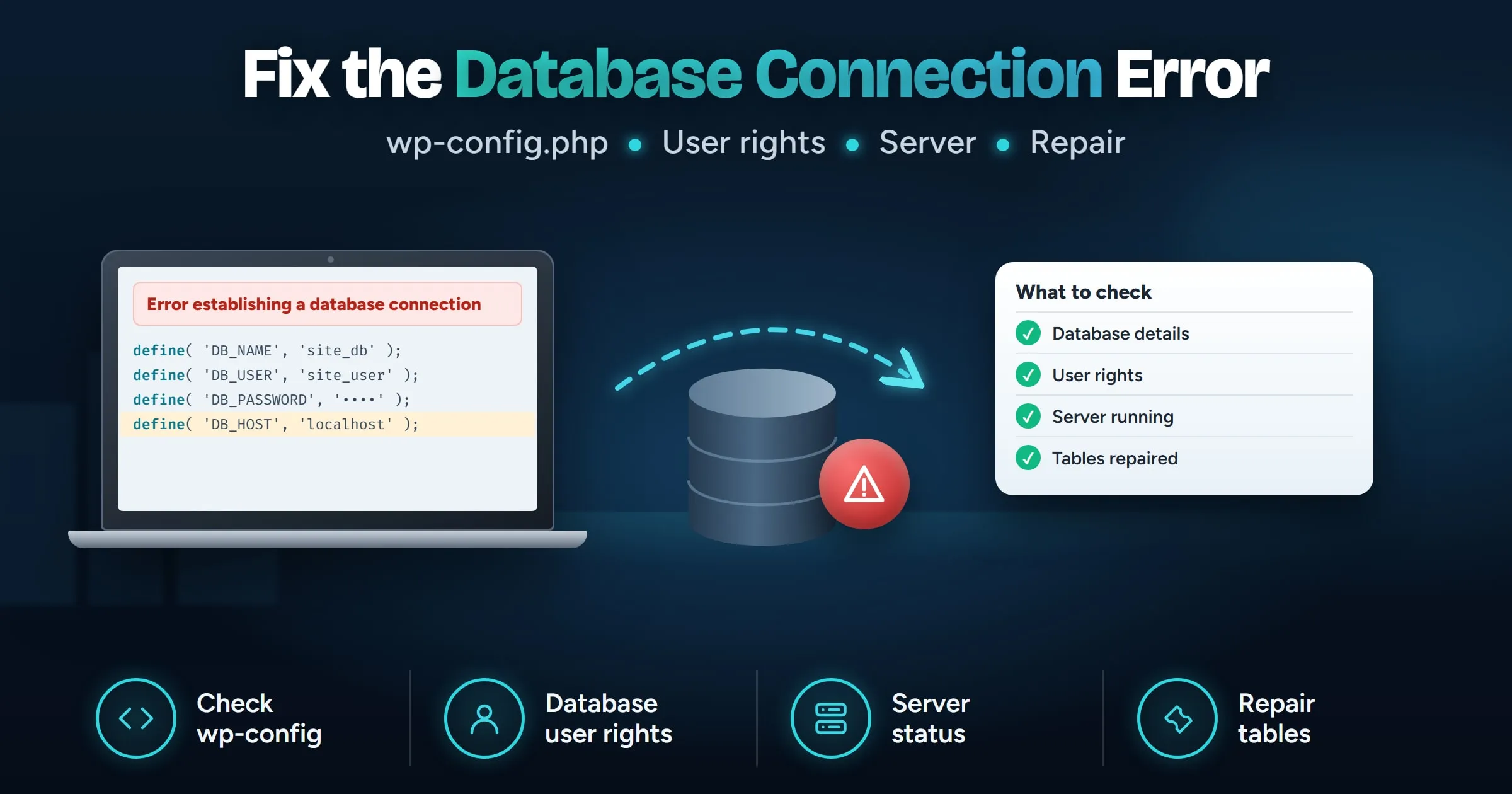
How do you fix error establishing a database connection?
"Error establishing a database connection" means WordPress cannot log in to its database. The usual cause is a wrong database name, username, password or host in wp-config.php, often right after a move, a restore or a password change. If those details are correct, check that the database user has rights to the database, that the database server is running, and whether any tables need repair.
Last updated
In this guide
- What does the error actually mean?
- First, check whether wp-admin shows something different
- Step 1: Check the database details in wp-config.php
- Step 2: Check the database user has rights to the database
- Step 3: Check the database server is running
- Step 4: Repair damaged tables
- Step 5: Rule out a hacked site
- How do you stop this error happening again?
- Next steps
- Sources
“Error establishing a database connection” means WordPress cannot log in to its database, so it cannot load any page. In most cases the database details in wp-config.php are wrong, often right after a move, a restore or a password change in your hosting panel. Work through the checks below in order, starting with wp-config.php, and most sites are back within a few minutes.
What does the error actually mean?
Every WordPress page is built from the database: posts, pages, settings and users all live there. When a visitor opens the site, WordPress first connects to the database with the details in wp-config.php. If that connection fails, it stops and shows “Error establishing a database connection” instead of the page.
Your content is almost always still there. The problem is the connection, not the data.
First, check whether wp-admin shows something different
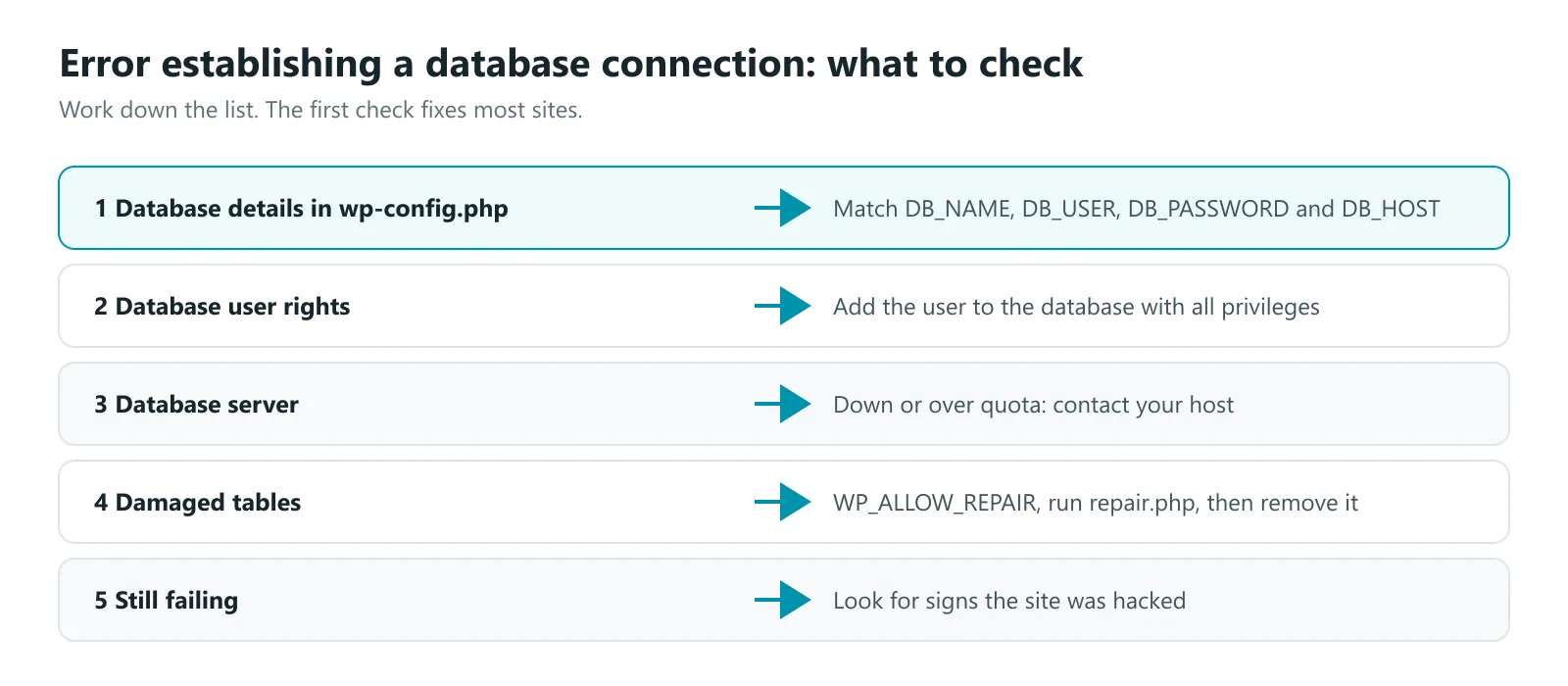
Open yoursite.com/wp-admin. If you see the same error, keep reading from step 1. If instead you see a message that one or more database tables are unavailable and the database may need to be repaired, the connection works but some tables are damaged. Skip to step 4.
Step 1: Check the database details in wp-config.php
This fixes the error most of the time, especially after a move or restore.
- Open wp-config.php in the site’s main folder, using your host’s file manager or SFTP.
- Find these four lines:
define( 'DB_NAME', 'database_name' );
define( 'DB_USER', 'database_user' );
define( 'DB_PASSWORD', 'password' );
define( 'DB_HOST', 'localhost' );- Open your hosting panel’s database page (in cPanel, MySQL Databases) and compare each value exactly. Watch for:
- A prefix on the name or user. Many hosts add your account name, such as account_wpdb.
- A password changed in the hosting panel but not in wp-config.php.
- The wrong host. Many hosts use localhost, but some give a separate database hostname, sometimes with a port. Your host’s database page or help docs list the right value.
- Save the file and reload the site.
If you are not sure of the password, reset the database user’s password in the hosting panel and put the new one in wp-config.php.
After a migration: check DB_HOST was not left pointing at the old server, and that the database name matches the one you imported into on the new host.
Step 2: Check the database user has rights to the database
The user and password can be correct and the connection still fail if the user is not allowed to use that database. In cPanel, open MySQL Databases, find Add User To Database, choose the user and the database, and grant All Privileges. Other panels have a similar setting on the database page.
To test the details directly, log in to phpMyAdmin with the same username and password. If you can open the database there, the details are right. With SSH access, WP-CLI can test using the exact details from wp-config.php:
wp db checkStep 3: Check the database server is running
If the details are right but the connection still fails, the problem may be the database server itself:
- Other sites on the same hosting also show the error? The database server is likely down or overloaded.
- Your host’s status page shows an outage?
- The database has hit its size quota, and the host has shut it down?
These need your host. Contact their support with the exact error and the time it started. WordPress’s own documentation lists a down server and an exceeded quota as common hosting causes of this error.
Step 4: Repair damaged tables
Only do this if wp-admin says tables need repair.
- Add this line to wp-config.php, above the line that says “That’s all, stop editing!”:
define( 'WP_ALLOW_REPAIR', true );- Open yoursite.com/wp-admin/maint/repair.php and choose Repair Database.
- Remove the line from wp-config.php as soon as the repair finishes. While it is turned on, anyone can open the repair page without logging in.
If the repair page cannot fix the tables, restore the database from a recent backup. Our guide on how to restore WordPress from a backup safely explains how to restore only the database.
Step 5: Rule out a hacked site
If the details are right, the server is running and the tables are fine, but the error keeps coming back, check whether the site has been compromised. Look for wp-config.php changes you did not make, unknown files in the main folder, or new administrator accounts. WordPress’s documentation recommends scanning the site and following its hacked site guidance if you find signs of an attack.
How do you stop this error happening again?
- Update wp-config.php every time you change the database password in your hosting panel.
- Keep wp-config.php out of restores unless it is missing or damaged. It holds the live database details, which can differ from the backup’s copy. MoveSafe, the WordPress backup and migration plugin we make, never overwrites wp-config.php during a restore for exactly this reason.
- Test after every move before you switch DNS, so a wrong database host shows up while the old site is still live. Our guide on migrating WordPress to a new host covers testing privately.
- Keep a recent backup off the server, so damaged tables are a quick restore rather than a rebuild.
Next steps
Start with wp-config.php, because it fixes most cases. If the error keeps coming back, or your host says everything is fine on their side, book a free call and we will look at it with you. Our website support and care plans include uptime monitoring, so problems like this are spotted before your customers see them.
Sources
- Common WordPress errors, WordPress Advanced Administration Handbook
- Editing wp-config.php, WordPress Advanced Administration Handbook
- wp db check, WP-CLI command reference