
How do you migrate WordPress to a new host?
To migrate WordPress to a new host, take a full backup, copy the files and database to the new server, and update wp-config.php with the new database details. Test the copy privately before you change DNS, then point your domain at the new host. Keep the old hosting active until the new site has run cleanly for at least a week.
Last updated
In this guide
- What does a WordPress migration involve?
- Before you start
- Step 1: Take a full backup
- Step 2: Prepare the new host
- Step 3: Copy the files
- Step 4: Copy the database
- Step 5: Update URLs if the address changes
- Step 6: Test the new site privately
- Step 7: Switch DNS
- Step 8: Check everything after the move
- How do you migrate WordPress with MoveSafe?
- What usually goes wrong, and how to fix it
- Next steps
- Sources
To migrate WordPress to a new host, you copy two things, the files and the database, to the new server, connect them through wp-config.php, and test the site before you point your domain at it. Done in that order, visitors never see a broken site because the old one stays live until the new one is ready. This guide walks through every step, by hand or with a plugin, and lists the fixes for the problems that come up most.
What does a WordPress migration involve?
A migration is a backup and a restore with a server change in the middle. You copy the site to the new host, connect it to a new database, check it works, and then change DNS so your domain points at the new server.
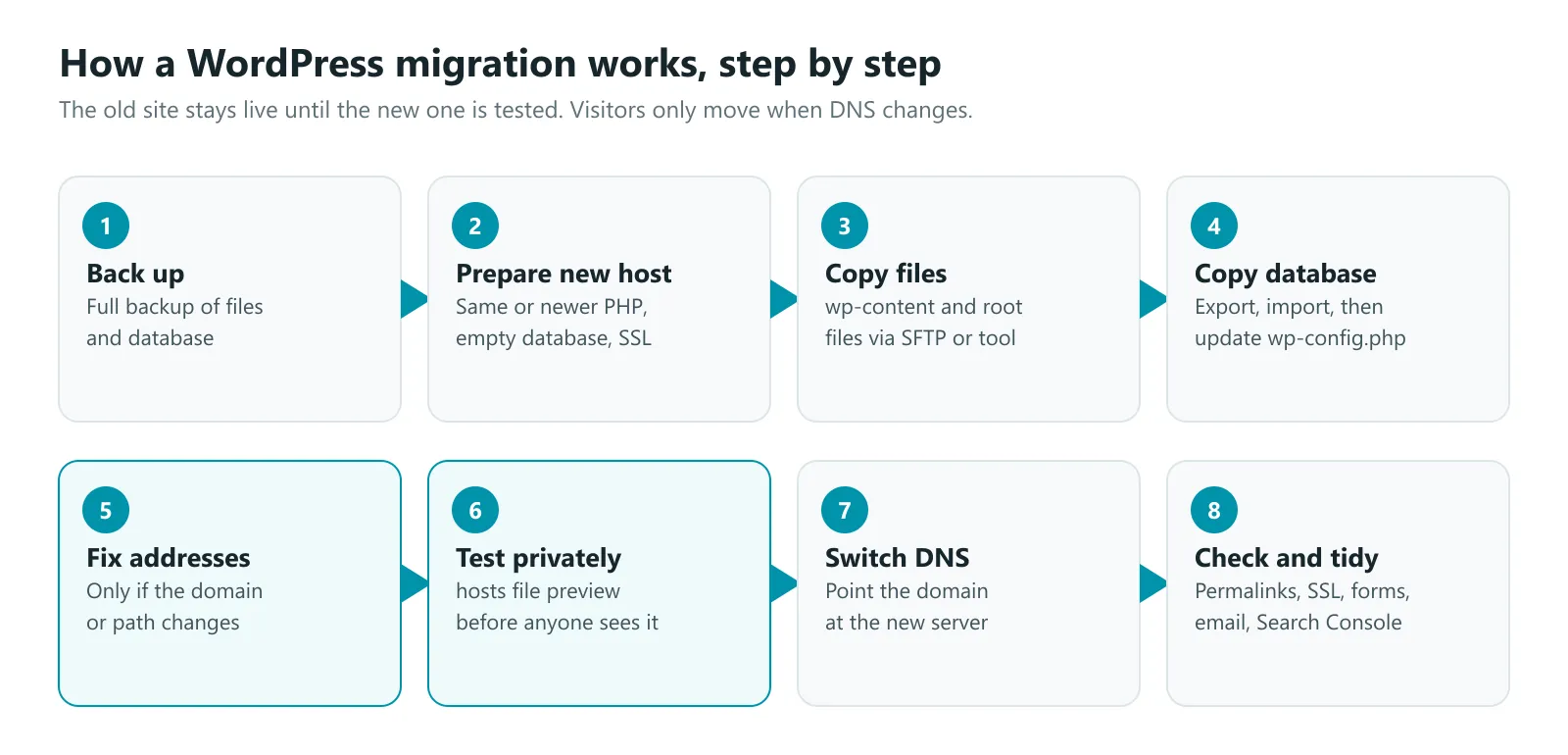
The order matters. The old site keeps serving visitors until step 7, so any mistake you find while testing costs you nothing.
Before you start
Gather these before you touch anything:
- Logins for both hosts, including SFTP or file manager access and phpMyAdmin.
- Access to your DNS. This is wherever your domain’s records are managed: your registrar, your old host or a service like Cloudflare.
- Your email setup. Check whether email for your domain is hosted with your old web host. If it is, you need a plan for email too, or messages will stop arriving after the switch.
- The PHP version on the old host. Set the new host to the same version or a newer one your theme and plugins support. A big jump in PHP version is a common cause of errors after a move.
- Enough disk space on the new host for the site plus a backup.
- A content freeze. Avoid new posts, comments and, ideally, orders between the backup and the switch, or they will be lost. On a store, pick a quiet time.
Lower your DNS TTL a day or two early. TTL controls how long the internet caches your DNS records. Setting it to a few minutes before the move means the switch spreads faster, and you can switch back faster if needed.
Step 1: Take a full backup
Back up the files and the database together, and download the backup to your computer or cloud storage. This copy is both what you will move and your way back if anything goes wrong. Our guide on how to back up WordPress covers what to include.
Step 2: Prepare the new host
On the new hosting account:
- Add your domain to the account, without changing DNS yet.
- Create an empty database and a database user with full rights on it. Note the database name, username, password and host. The host is often localhost, but some providers use a different address.
- Set the PHP version to match or improve on the old server.
- Set up SSL if the host can issue a certificate before DNS points at it. Some hosts can only do this after the switch, which is fine.
Step 3: Copy the files
Upload your WordPress files to the new host’s web folder, often public_html. You can upload the whole site, or install a fresh WordPress and upload only wp-content, which skips core files you do not need to move.
Large media libraries are where this step gets slow. Upload them in parts if your connection drops, and check the file count matches the old server when you are done.
Step 4: Copy the database
- Export the database from the old host. In phpMyAdmin, select the database, click Export and save the SQL file. With WP-CLI, run
wp db export. - Import it into the new empty database. In phpMyAdmin, select the new database, click Import and choose the file. With WP-CLI, run
wp db importfollowed by the file name. - Update wp-config.php on the new host with the new details:
define( 'DB_NAME', 'new_database_name' );
define( 'DB_USER', 'new_database_user' );
define( 'DB_PASSWORD', 'new_database_password' );
define( 'DB_HOST', 'localhost' );
Also check the line that sets $table_prefix. It must match the prefix on the tables you imported, such as wp_. If it does not, WordPress acts as if it is a new, empty install.
Very large SQL files can fail in phpMyAdmin because of upload or time limits. If that happens, use WP-CLI or ask the new host to import the file for you.
Step 5: Update URLs if the address changes
If you keep the same domain, skip this step. WordPress stores the site address in the database, so a same-domain move needs no URL changes.
If the address changes, for example to a new domain, a subfolder or from http to https, every stored link has to be updated. Do not do this with a plain find and replace on the SQL file or a SQL REPLACE query. WordPress and many plugins store some settings as serialized data, which records the length of each piece of text. Change the text without fixing the lengths and those settings break, often silently: widgets disappear, theme options reset and page builder layouts go blank.
Use a tool that understands serialized data. With WP-CLI:
wp search-replace 'https://old-domain.com' 'https://new-domain.com' --all-tables --dry-runCheck the dry run, then run the same command without --dry-run. For a new domain, also set up 301 redirects from the old addresses to the new ones, and use the Change of Address tool in Google Search Console.
Step 6: Test the new site privately
Your domain still points at the old server, so how do you see the new one? The most reliable way is your computer’s hosts file, which overrides DNS for your machine only.
- Find the new server’s IP address in your hosting panel.
- Add a line to your hosts file with the IP address followed by your domain, and a second line for the www version. On Windows, the file is at C:\Windows\System32\drivers\etc\hosts. On Mac and Linux it is /etc/hosts.
- Open your site. You are now seeing the new server, while every other visitor still sees the old one.
Click through everything that matters: the home page, a few posts, the menu, contact forms, search, logins and, on a store, a test checkout. Remove the hosts file lines when you are done.
Temporary URLs from your host also work for a quick look, but WordPress often redirects them to the real domain, so the hosts file is the better test.
Step 7: Switch DNS
When the new site passes your tests, point your domain at it. Either change the A record (and the www record) to the new server’s IP address, or change your nameservers to the new host’s.
If you change nameservers, copy every record first. Your new DNS needs the same MX records for email, plus TXT records for things like email verification and Google Search Console. Missing records are the most common way a hosting move breaks email.
DNS changes can take up to 48 hours to reach everyone, though with a low TTL most visitors move much sooner. During that time some visitors see the old server and some see the new one, which is why the content freeze matters.
Step 8: Check everything after the move
Once DNS has switched:
- Save permalinks. Go to Settings, then Permalinks, and click Save without changing anything. This rebuilds the rewrite rules and fixes most 404 errors.
- Check SSL. Make sure https works and the padlock shows on every page.
- Clear every cache: caching plugins, the host’s cache and any CDN.
- Test forms and email. Send yourself a message through every form.
- Check scheduled tasks, such as backups and store emails.
- Watch Google Search Console for crawl errors over the next few days.
- Keep the old hosting for at least a week. If something was missed, the original is still there.
How do you migrate WordPress with MoveSafe?
MoveSafe, our WordPress backup and migration plugin, handles the copy, database and address steps for you, and adds checks that are hard to do by hand.
- Back up the old site with MoveSafe and download the backup file.
- Install WordPress and MoveSafe on the new host. Test it on the new server through your hosts file, as in step 6.
- Upload the backup. There is no upload size limit from your host’s PHP settings, and uploads resume if the connection drops.
- Review the pre-restore check. Before anything is replaced, MoveSafe shows which files will be overwritten, plugin and theme version changes, and PHP and WordPress compatibility.
- Restore. If the address is different, MoveSafe rewrites every address in the database, including serialized data, and rebuilds permalinks.
- Test, then switch DNS as in steps 6 and 7.
A few details make a MoveSafe migration safer than copying by hand:
- SEO and multilingual plugins are detected. With Yoast, Rank Math, AIOSEO, SEOPress, WPML, Polylang, TranslatePress or Weglot, language domains are moved, cached sitemaps are cleared and Yoast’s index is updated.
- The new site keeps its own search engine visibility setting. A staging copy that is hidden from Google stays hidden, and a live site does not get set to noindex by accident.
- Every restore can be undone. MoveSafe takes a restore point first, and for 30 minutes afterwards it watches for crashes and rolls back automatically if the site keeps failing.
- Coming from All-in-One WP Migration? MoveSafe can import .wpress backup files directly.
What usually goes wrong, and how to fix it
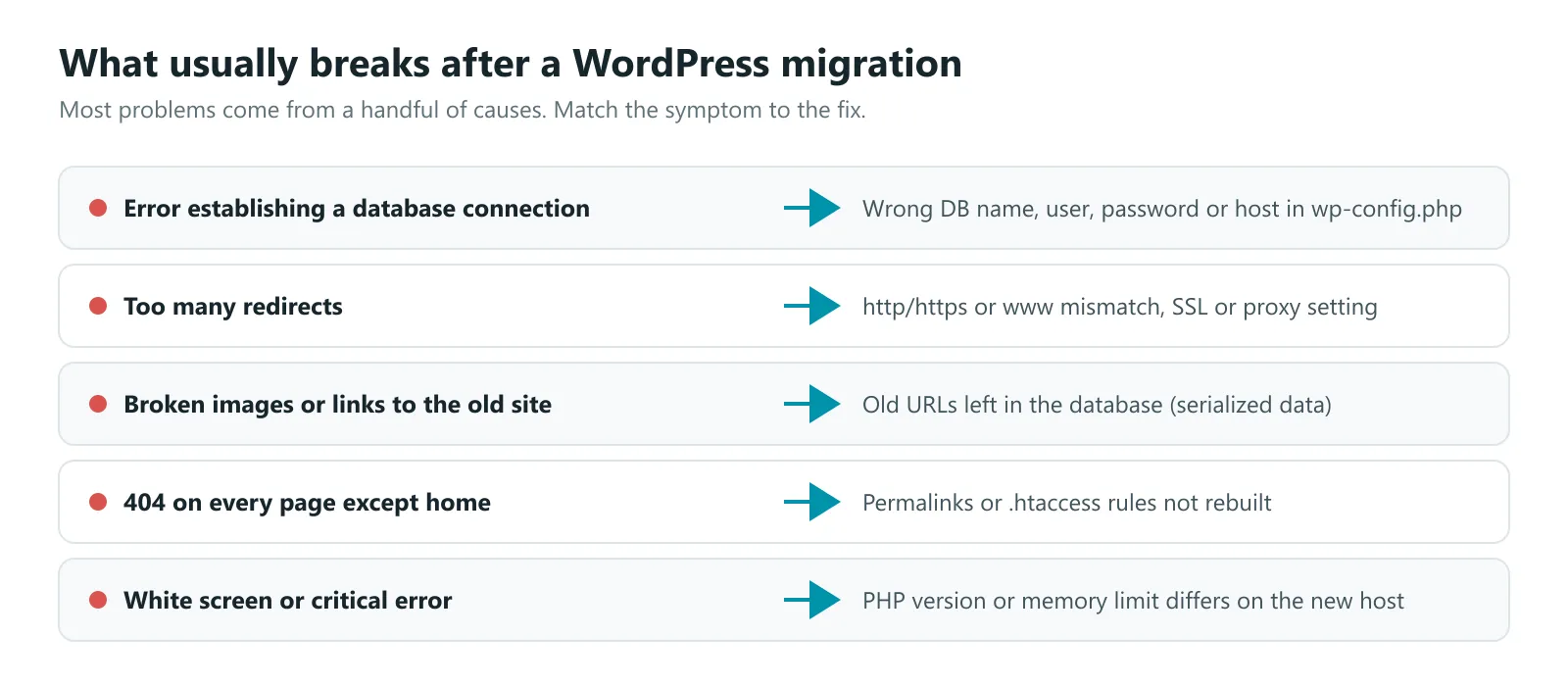
| Symptom | Likely cause | Fix |
|---|---|---|
| “Error establishing a database connection” | Wrong database name, user, password or host in wp-config.php | Copy the exact details from the new host’s database page. Check DB_HOST is not left as the old server |
| Too many redirects | http and https, or www and non-www, do not agree. Often an SSL or CDN setting | Make the WordPress Address and Site Address match the real address. With Cloudflare, use Full SSL mode, not Flexible |
| Images or links still point to the old site | Old URLs left in the database | Run a serialization-safe search and replace |
| Every page except the home page shows 404 | Rewrite rules or .htaccess missing | Save permalinks again, and check .htaccess was copied |
| White screen or “There has been a critical error” | PHP version or memory limit differs on the new host | Check the PHP error log, match the PHP version, raise the memory limit |
| Emails stop arriving | MX records missing after a nameserver change | Copy the MX and TXT records from the old DNS |
| Site hidden from Google | “Discourage search engines” left on from staging | Turn it off under Settings, then Reading |
If you are stuck halfway, you can always go back: the old site is still running until DNS changes, and your step 1 backup has everything. For a restore that goes wrong on the new host, our guide on restoring WordPress from a backup safely explains how to recover.
Next steps
Plan your migration around the eight steps above, test before you switch DNS, and keep the old host for a week. If you want a second pair of eyes, book a free call and we will look at your site with you. Once the site is settled on its new host, our website support and care plans can take over updates, backups and monitoring.
Sources
- Migrating WordPress, WordPress Advanced Administration Handbook
- wp search-replace, WP-CLI command reference
- Change of Address tool, Google Search Console Help