
How do you back up WordPress the right way?
To back up WordPress, copy two things: the files in wp-content (uploads, themes and plugins) and the database that holds your posts, pages, users and settings. Save them together, keep at least one copy off your web server, and schedule backups so they run without you. A backup only counts once you have checked that it opens and can be restored.
Last updated
In this guide
- What does a WordPress backup include?
- What can you leave out of a backup?
- How do you back up WordPress?
- How do you back up WordPress with MoveSafe?
- How often should you back up WordPress?
- Where should you keep WordPress backups?
- Should you encrypt WordPress backups?
- How do you know a backup actually works?
- Common WordPress backup mistakes
- Next steps
- Sources
To back up WordPress, you need a copy of two things: your files (mainly the wp-content folder) and your database. A good backup saves both together, runs on a schedule, and keeps at least one copy away from your web server. This guide shows how to back up WordPress by hand, with your host and with a plugin, and how to check the backup works before you need it.
What does a WordPress backup include?
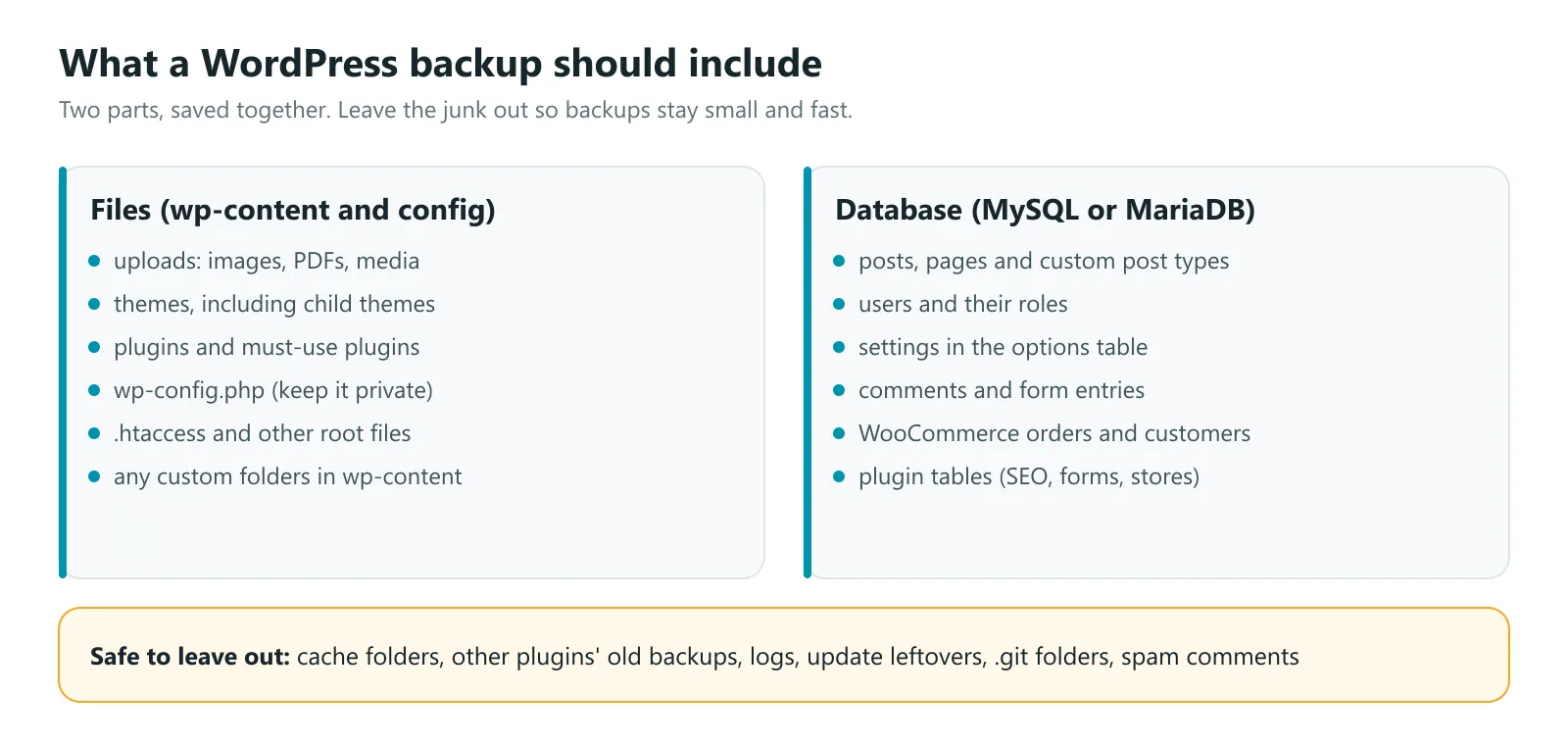
A WordPress site is two separate things that only work together. The files hold your media, your theme and your plugins. The database holds almost everything you typed into wp-admin: posts, pages, menus, users, settings, comments, form entries and, on a store, orders and customers. A backup that has only one half cannot rebuild your site.
| Part | What is in it | Why it matters |
|---|---|---|
| wp-content/uploads | Images, PDFs and other media | Often the largest part, and impossible to rebuild if lost |
| wp-content/themes | Your theme and any child theme | Custom code and design changes live here |
| wp-content/plugins | Every installed plugin | Saves the exact versions you were running |
| wp-content/mu-plugins | Must-use plugins, if any | Some hosts and developers add code here |
| wp-config.php | Database login and site settings | Needed to rebuild the site by hand. Keep it private |
| .htaccess (Apache servers) | Redirects and permalink rules | Custom redirects are easy to forget |
| The database | Posts, pages, users, settings, comments, orders | The content of your site |
You do not need to back up WordPress core (the wp-admin and wp-includes folders). Those files are identical on every site running the same WordPress version, and you can download them again from WordPress.org at any time.
What can you leave out of a backup?
Smaller backups finish faster, upload faster and are less likely to hit your host’s time limits. These are safe to skip on most sites:
- Cache folders, such as wp-content/cache. Caching plugins rebuild them on their own.
- Old backups made by other plugins. Backup plugins often store their archives inside wp-content, so each new backup can contain every old one. This is the most common reason a backup is far larger than the site.
- Log files, including debug.log.
- Update leftovers, such as the upgrade folder.
- .git folders, if a developer uses version control on the server.
- Spam comments and post revisions in the database, if you do not need old drafts.
How do you back up WordPress?
There are three common ways. Most site owners end up using two of them: the host’s backups as a safety net and a plugin for backups they control.
Option 1: Use your web host’s backups
Most managed WordPress hosts take automatic backups. Look in your hosting control panel for a section called Backups. Before you rely on it, check:
- How often backups run, and at what time.
- How long they are kept. Some hosts keep only a few days.
- Whether you can download them. A backup you cannot take with you will not help if you change hosts or lose access to the account.
Option 2: Back up WordPress manually
A manual backup takes longer but needs no plugin, and knowing how to do it helps when something goes wrong.
- Download your files. Connect with an SFTP app such as FileZilla, or open your host’s file manager. Download the wp-content folder, wp-config.php and .htaccess from the folder that holds WordPress (often public_html).
- Export the database. Open phpMyAdmin from your hosting panel, select your WordPress database, click Export, keep the format as SQL and download the file. Not sure which database is yours? The name is in wp-config.php next to DB_NAME.
- Store both together in a folder named with the site and date, then copy that folder somewhere other than the server.
If you have SSH access, WP-CLI does the same in two commands:
wp db export site-backup.sql
tar -czf site-files.tar.gz wp-content wp-config.php
Manual backups have one big weakness: people stop doing them. Use this method for one-off copies, and automate the rest.
Option 3: Use a WordPress backup plugin
A backup plugin saves the files and database in one step, runs on a schedule and can send copies to cloud storage. When you compare plugins, look past the backup button and check:
- Can it restore without a developer? A backup is only half the job.
- Does it check before it restores? Restoring the wrong backup can delete newer posts or orders.
- Can you undo a restore? If the restored site breaks, you want a way back.
- Does it handle large sites? Big media libraries often hit upload and time limits.
- Where can it send backups? At least one destination should be off your server.
How do you back up WordPress with MoveSafe?
MoveSafe is the WordPress backup and migration plugin we make. It saves your site as one standard .zip file that opens with normal zip tools, and it works in short steps so large sites do not run into your host’s time limits. Here is how a backup works:
- Open MoveSafe and click Back up now. The button is on every MoveSafe screen.
- Choose what to include. Pick a preset (whole site, files only, database only or media only) or build your own. The backup builder shows the size of every part, so you can see what makes a backup large.
- Turn on “Leave out junk”. This skips caches, archives from other backup plugins, logs, update leftovers, .git folders, spam comments and post revisions.
- Choose where to keep it. Keep the backup on the server, on the server and Google Drive, or on Google Drive only. With Drive only, the copy on the server is removed only after the upload is verified.
- Add a password if you want encryption. MoveSafe can encrypt the zip with AES-256.
- Start the backup. Progress shows in the WordPress admin bar on every page, so you can keep working or leave and come back.
To make it automatic, open the schedule settings and pick one of eight frequencies, from hourly to monthly, at the exact time you want. MoveSafe can delete old backups automatically, keeping the newest ones, and email up to five addresses when a backup succeeds or fails.
How often should you back up WordPress?
Back up as often as you would hate to redo the work. A good rule: the time between backups is the amount of work you are willing to lose.
| Type of site | How often content changes | Suggested schedule |
|---|---|---|
| Brochure or small business site | A few times a month | Weekly, plus before every update |
| Blog or news site | Several times a week | Daily |
| Membership or community site | Every day, by users | Daily, or twice a day |
| WooCommerce store | New orders every day | Every few hours for the database, daily for files |
Whatever the schedule, always back up right before you update WordPress, a theme or a plugin, change hosts, or make big design changes. Updates are one of the most common reasons sites break.
Where should you keep WordPress backups?
Never keep your only backup on the same server as your site. If the server fails, your hosting account is suspended or the site is hacked, a backup stored there can disappear with it, or be infected too.
The 3-2-1 rule is a simple way to stay safe: keep 3 copies of your site, in 2 different places, with 1 copy off the server.
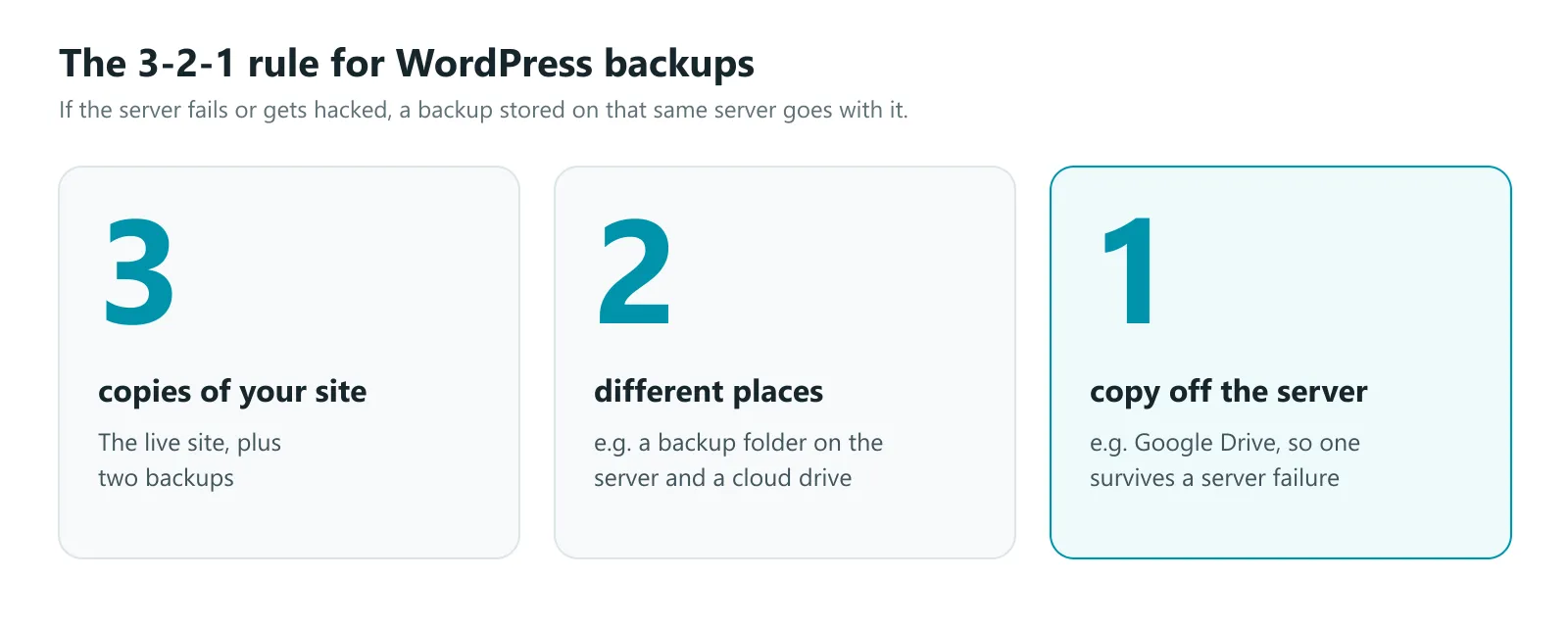
For most WordPress sites that means:
- The live site itself.
- A recent backup on the server, for quick restores.
- A copy in cloud storage such as Google Drive, for when the server is the problem.
Backups stored inside your site’s folders should also be protected from download. If a backup file sits in a public folder with a guessable name, anyone who finds it can download your whole database. MoveSafe stores backups in a folder the web server refuses to serve, and you can move that folder to a bigger disk with a setting in wp-config.php.
About Google Drive access: when a plugin connects to Google Drive, check what it asks for. MoveSafe uses Google’s narrowest permission, drive.file, so it can only see files it created or files you pick, not the rest of your Drive. If several sites share one Google account, each MoveSafe site gets its own folder and only lists its own backups.
Should you encrypt WordPress backups?
Yes, if your site stores anything personal. A database backup contains user email addresses, password hashes, form entries and, on a store, customer names, addresses and order history. Anyone holding the file can read it.
Encryption with a password protects the backup wherever it ends up. Two things to remember:
- Store the password somewhere safe, such as a password manager. An encrypted backup without its password cannot be restored by anyone, including you.
- Make sure the encryption really happened. MoveSafe uses WinZip-compatible AES-256 and refuses to make the backup if the server cannot encrypt it, instead of quietly saving an unencrypted copy.
How do you know a backup actually works?
Most people find out their backup is broken on the day they need it. Check yours now:
- Look at the size. A backup that is much smaller than the last one may be missing a folder or the database.
- Look inside. Open the zip, or use your plugin’s view of the contents, and confirm wp-content and the database file are there.
- Restore it somewhere safe. The real test is restoring the backup to a local copy or a staging site and clicking through it. Do this every few months, and after any big change to the site.
Our guide to restoring WordPress from a backup safely covers what to check before you restore and how to restore only part of a site.
Common WordPress backup mistakes
- Backing up only the database or only the files. You need both.
- Keeping every backup on the same server. One failure takes all of them.
- Backing up a hacked site and keeping only that. Keep older backups too, so you have a clean copy from before the problem started.
- Never testing a restore. An untested backup is a hope, not a plan.
- Letting backups fill the disk. Old backups pile up until the hosting account runs out of space and the backups start failing. Keep the newest few and delete the rest automatically.
- Backing up a store too rarely. Restoring a week-old database to a busy store removes a week of orders. Back up the database more often, and use a partial restore when you only need to fix something else.
Next steps
Start with one full backup today, copy it off the server, and set a schedule that matches how often your site changes. If you are about to change hosts, read how to migrate WordPress to a new host next. And if you would rather have someone else handle backups and updates, our website support and care plans include them.
Sources
- Backups, WordPress Advanced Administration Handbook
- Backing up your database, WordPress Advanced Administration Handbook
- wp db export, WP-CLI command reference